Online Entrance Exam, spring 2026
NB. Information on this site is subject to change.
Table of contents
- Identification documents
- Identification
- Exam sections, duration and scoring
- Monitoring
- Privacy policy
- Hardware and network requirements
- Participating in the exam and exam schedule
- Individual arrangements
- Final student selection and publishing the results
- Frequently asked questions about the exam
The online entrance exam is a digital entrance exam, used for selecting students to study in Master's Degree Programme in Human Neuroscience and Master's Degree Programme in Public Mental Health. The exam is completed remotely online by the applicant using their own computer. Please note that only eligible applicants will receive an email invitation to take the exam!
The next online entrance exam is organised on 2.3.2026 from 12 o’clock noon onwards (Finnish time, UTC/GMT+2). The exam does not include any reading materials or pre-assignments in advance. If you have any questions after reading these information pages, please don't hesitate to be in touch with the Admission Services team at admissions(a)utu.fi.
Identification documents
The applicant needs a valid, acceptable passport to be able to participate in the online entrance exam. The passport can be either biometric or non-biometric to be accepted as proof of identity. No other forms of identification documents are accepted. For example, residence permit cards or EU/EEA identity cards will not be accepted. The applicant must be identifiable from the photo on their passport (especially if it has been a long time since the passport was issued).
The passport has to be valid until 2 March 2026.
For the identification process, you have to submit the following information on the Studyinfo application form:
- A scan of an acceptable passport during the application period by 28 January 2026 at 15:00 Finnish time (UTC/GMT+2) at the latest.
- The number of the passport
- Ensure that the passport number is written correctly. It is the responsibility of the applicant to provide the correct passport number.
- If the passport contains letters, write them in uppercase.
- See below for detailed instructions on how to find the passport number on the document.
If the information you submit is incorrect or you do not submit this information to the application by the given time limit, you cannot participate in the exam and thus will not proceed in the selection process.
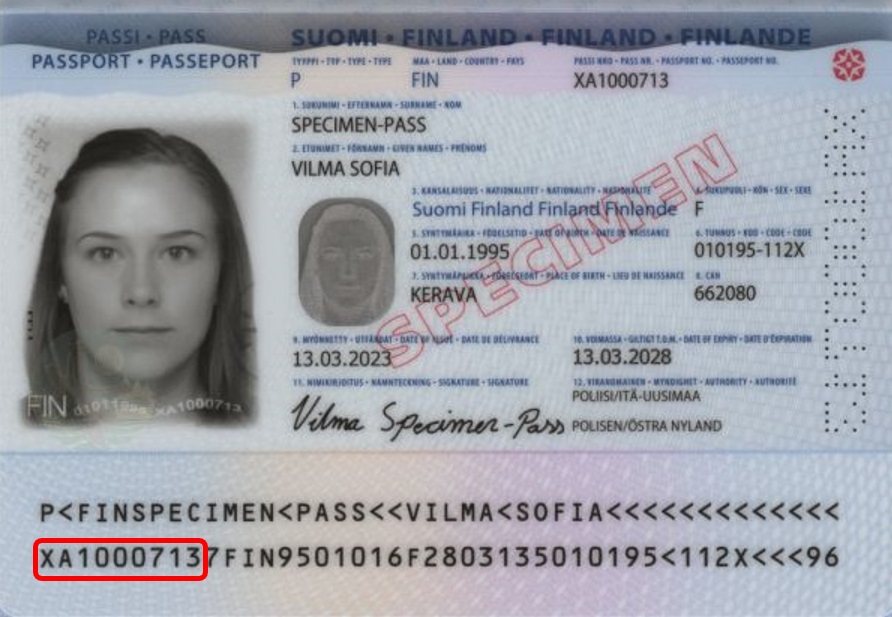
The passport number may be located in different fields on different national passports. The passport number is typically located in the field labeled "Passport number" or "Document number", but it can also be located in other fields. You can verify the correct passport number from the machine-readable zone (MRZ) on the passport data page. The passport number is located at the beginning of the second line of the MRZ, starting from the 1st character, see the picture below.
Identification
Once you have been invited to take the exam you have to identify yourself to be able to participate in the online exam and proceed in the selection process.
The identification process consists of two phases: 1) pre-identification and 2) identification on the exam day.
- Pre-identification (before the exam)
Before the exam, you will be invited to perform the pre-identification in the Candour ID mobile application within an indicated time limit. You will receive an invitation to the pre-identification to the email address provided on your application form on 19.-20.2.2026. The link in the invitation directs you to a page where you can proceed with the pre-identification. You can also perform the pre-identification and check the status of your pre-identification anytime by logging in to the page https://login.valluexam.fi. When logging in, please submit the same passport number and the PIN code as provided in your Studyinfo application. - Identification on the exam day
Those applicants who have successfully performed the pre-identification will be able to participate in the exam. On the exam day, you have to identify yourself again while logging in to the exam. This means that you will first proceed to the Candour’s service to take a selfie with your computer’s camera.
Pre-identification has to be performed from 19 February 2026 at 8:00 Finnish time (UTC/GMT+2) to 20 February 20.2.2026 at 15:00 Finnish time (UTC/GMT+2) at the latest. The email will be sent only once so please make sure that you have space in your inbox. If necessary, also check your spam and other folders. Please note that the delivery of the email may take some time. The email will be sent only once so please make sure that you have space in your inbox. If necessary, also check your spam and other folders. If you can’t find the invitation to the pre-identification in your email, you must proceed with the pre-identification via the login page https://login.valluexam.fi.
If you don’t remember your PIN code, please check it from your own application. After you submitted your joint application form in the Studyinfo service, you received a confirmation email to the email address you gave in your application. The confirmation email has a link to your own application.
You need the following for the pre-identification:
- Passport. The passport has to be valid until 2.3.2026. You must use the same identification document that you have attached to your application form and whose number you have provided on the application form.
- A mobile phone on which you can download the Candour ID mobile application.
- Candour ID mobile application (available in App Store or Google Play). Make sure you have the latest version of the application installed.
Performing the pre-identification on 19.-20.2.2026
The Candour ID mobile application is used for identification. The pre-identification has to be performed from19 February 2026 at 8:00 Finnish time (UTC/GMT+2) to 20 February 2026 at 15:00 Finnish time (UTC/GMT+2) at the latest. If you do not perform the pre-identification within the given timetable you cannot proceed in the exam selection process.
Before starting the pre-identification, make sure you have your original physical passport available. Before starting the pre-identification and download the Candour ID application to your mobile phone. If you already have the application installed, make sure it is updated to the latest version. When starting the pre-identification process, open the Play Store or App Store link from the pre-identification web page (or visit https://portal.candour.fi/mobileRedirect) on your mobile device. Check if any updates are available for the app. During the pre-identification process, follow the instructions provided by the Candour ID application. A reliable internet connection is required to complete the pre-identification process, and the applicant is responsible for ensuring the functionality of the internet connection. Make sure to stay on the same network during the entire pre-identification process, so that your IP address does not change. Complete the pre-identification in one session without long breaks, to avoid connection issues. Make sure that cookies are allowed in your browser. If you encounter any issues, try using a different browser. Please note that the pre-identification process varies slightly depending on your phone type and the identification document you are using.
You have to perform the following steps in the Candour ID application during the pre-identification:
- Use the same passport in the Candour ID whose number was already provided in your Studyinfo application form
- Take a picture of your passport
- You must use your original physical identification document for the pre-identification in the Candour ID application; a photo or copy of your identification document is not acceptable
- Read the information of your passport
- If you are using a biometric passport: Read the information from the chip of your passport according to the instructions provided by the application
- If you don’t have a biometric passport: You can proceed with optical verification (without chip reading) according to the instructions provided by the application
- If reading the chip of your biometric passport is not successful: You can proceed with optical verification (without chip reading) according to the instructions provided by the application
- Take a selfie
- Please note that a live photo is required for identification (photos or screenshots are not accepted)
- The application verifies that
- the number of your passport matches with the number provided in Studyinfo
- the passport is valid
- the person in the selfie matches the facial image read from the passport.
- The Candour ID informs you that the identification has been successful. Make sure to return to the browser and wait patiently until you are redirected to the exam info page
- If necessary, explore the Candour guide where you can find detailed instructions.
If you encounter issues during the pre-identification, the Candour ID application will provide additional instructions as you proceed.
Important: If you experience any issues during pre-identification, take a screenshot of the exact error or problem (for example, the error message in the Candour ID app). When contacting Admission Services, attach the screenshot to your message to ensure the issue can be reviewed more efficiently.
You have three attempts for the pre-identification verification. Use all three attempts if you do not succeed before that. After each attempt, the Candour ID application will inform you how many attempts you have remaining. It is important that each attempt is completed fully – go through all the required steps (picture of your passport, chip or optical reading, and selfie) in each attempt. If you do not succeed within these three attempts, your pre-identification will be forwarded for manual review. Once this happens, you will receive an email notification. You can also check the status of your pre-identification via the login page https:// login.valluexam.fi. Read more about manual review below.
Manual review
If you have used all three attempts and have not succeeded with the pre-identification in the Candour ID application, your pre-identification will be forwarded for manual review. Your pre-identification can still be approved manually if the identification requirements are met and you can be identified based on the data stored during the pre-identification attempt in the Candour ID application. Otherwise, your pre-identification will be rejected.
You will be informed via email by 24.2.2026 at the latest whether your pre-identification has been approved or rejected based on the manual review. The cases will be reviewed manually during a designated time period, so please wait patiently for the information via email.
If the manual review is approved, you will receive an invitation to the exam to the email address you provided in your Studyinfo application. If the manual review is rejected, you will be notified by email, and you cannot continue the pre-identification anymore nor proceed in the selection process.
Exam sections, duration and scoring
The entrance exam is conducted in the English language. The exam sections and duration of the exam are determined on the basis of the study programmes you apply for. You complete all exam sections that are included to the study programmes you apply for in one attempt. The entrance exam includes both common exam sections to all study programmes and field-specific exam sections. The total score of the exam is the sum score of the exam sections. In order to be selected, you must pass all exam sections (i.e. reach the minimum pass score per section).
A specific response time has been allocated for each exam section. When the section-specific time is up, the section will close. If you don’t finish the section its latest version will be saved as your answer. You can complete the sections in any order. However, please note that once a section is opened, it needs to be completed, and you cannot return to the section later. In addition to the section-specific times, there is 15 minutes for transitions between sections in the exam.
- English language skills (20 minutes): The section assesses your skills in reading and interpreting texts, such as understanding the relation between different parts of the text, mastering vocabulary and linguistic reasoning. The maximum score in this section is 20 and the minimum pass score is 3. Penalty scores are used in this section. Penalty scores mean that any wrong answers produce minus points.
- Reasoning skills (25 minutes): The section assesses your logical reasoning and problem-solving skills. The maximum score in this section is 20 and the minimum pass score is 1. Penalty scores are used in this section. Penalty scores mean that any wrong answers produce minus points. You can also leave a question unanswered.
- Programme spesific motivation letter (30 minutes): The specifics about what to include in the letter will be described in detail in the entrance exam. However, the applicant can think about the following points beforehand:
1. Why are you applying to this Master’s Programme?
2. What are your aspirations for your studies and future career?
3. How is your background relevant to this field?
Motivation letter should be less than 2000 characters (including spaces) long. The motivation letter is to be written directly on the entrance exam by the applicant.
After the exam, MDP in Human Neuroscience and MDP in Public Mental Health reserves the right to adjust the online entrance exam scoring for justified reasons.
Monitoring
NB! Information is subject to change.
Your activities during the exam are monitored in the exam system by SMOWL CM proctoring software. SMOWL CM proctoring software stores frontal camera images, screenshots of your computer screen, audio recordings, and all computer activities during the exam, including visited websites and opened applications. The software also identifies any peripherals or external devices connected to the computer. Monitoring ensures that the applicant completes the exam independently, without the help of anybody or anything else.
If you need help with the use of SMOWL, please find more information on SMOWL’s website.
You need to download and install SMOWL CM well before the exam. You will receive the download link for SMOWL CM by email once your pre-identification is completed successfully. Alternatively, the download link is available on the login page https:// login.valluexam.fi once your pre-identification is completed successfully. Please note that the download link is personal and should not be shared. If you have already installed SMOWL CM, make sure you have the latest version updated well before the exam.
Important for Mac users (spring 2026 exam): It has been found that SMOWL CM may cause performance issues on some Mac computers due to a technical fault. For this reason, it is essential that you install the updated version of SMOWL CM using the dedicated download link in your exam invitation email or on the login page, and not from any other source, as other versions may lead to performance issues during the exam. You will receive detailed download and install instructions by email and on the login page.
The SMOWL CM is only compatible with desktop computers or laptops, so it cannot be downloaded onto a tablet or mobile phone. Additionally, SMOWL CM is not compatible with Chrome OS, so you cannot complete the exam on a Chromebook.
If you are having trouble installing SMOWL CM on your computer, please see the instructions on SMOWL’s website: Downloading and installing SMOWL CM.
Hardware and network requirements
Please ensure that, on the day of the exam, you have access to a computer that meets the requirements and has a reliable internet connection. We recommend the use of a fixed broadband connection. The applicant is responsible for the functionality of the internet connection and the computer, including its power supply. The university cannot be held responsible for problem situations related to taking the exam, due to applicant’s hardware or software, or the stability of the internet connection. We recommend that you use a mouse to navigate in the exam system instead of the keyboard.
Use the up-to-date version of the Chrome browser. In case of problems, you can try using an updated version of the Microsoft Edge browser. Please do not use other browsers.
Browser extensions might disrupt the completion of the exam, so we recommend that you disable or turn them off them before logging in to the exam. Please see further instructions as to how to disable extensions in Chrome browser. Using other than commercially available VPN softwares from reputable vendors may obstruct the completion of the exam. An antivirus may prevent SMOWL CM from accessing your microphone and/or camera. If you're having trouble with SMOWL CM accessing one of those, please disable your antivirus for the duration of the exam.
Please enable JavaScript and cookies in your browser. At https://browserinfo.valluexam.fi you can check your browser version, screen resolution and whether JavaScript and cookies are enabled. Check your browser settings to make sure your browser version is up to date and update if necessary.
Use the following operating systems or their more recent versions:
- Windows 11
- macOS 14 (Sonoma)
- Ubuntu Linux 22.04 LTS
Please note that SMOWL CM is not compatible with Chrome OS, so you cannot complete the exam on a Chromebook.
Check your computer's settings to make sure your operating system is up to date and update if necessary.
To take the exam, your computer must have:
- A camera with a minimum resolution of 640x480 pixels (a built-in-camera or a webcam connected via USB). Virtual cameras are not allowed. Turn off any video streaming (or virtual camera) software you might have installed, as it can block access to the camera during the exam
- A microphone (any type of microphone, internal or external)
The recommended minimum screen resolution is 1024 x 768.
It is important that SMOWL CM is installed on a personal computer, as corporate computers may have access restrictions that could prevent the proctoring software from functioning properly.
Make sure that screen recording permissions are granted for SMOWL CM before starting your exam. This is essential for all users, but especially important for those using a Mac, as macOS requires manual permission settings. You can find detailed instructions on how to allow screen recording on SMOWL’s help page. If permissions are not granted, SMOWL CM will not be able to capture screenshots of your computer screen during the exam, which may result in your exam being rejected.
Monitoring during the exam
The monitoring begins the moment the exam starts. Monitoring finishes when you have completed the exam. After the exam, the monitoring data of the applicants is reviewed. ased on this review, applicants’ exam results may be dismissed if they have acted contrary to the guidelines for exam completion.
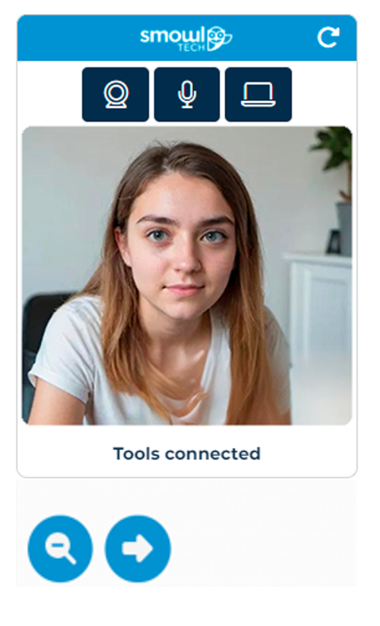
After logging in to the exam, before your personal exam starting time, you must set up and activate your frontal camera, microphone and SMOWL CM. You can see from the SMOWL monitoring block that monitoring is active when the icons are blue (frontal camera, microphone and SMOWL CM), please see the images below. Your face must be clearly visible and recognizable at all times in the monitoring block. Do not leave the SMOWL monitoring block even for a moment after the exam has started.
An image of the SMOWL monitoring block
Picture below illustrates the SMOWL monitoring block on your computer or laptop screen.
Make sure that your face is clearly visible in the SMOWL monitoring block and the three items (frontal camera, microphone and SMOWL CM) are activated troughout the entire exam. If necessary, you can move the SMOWL monitoring block to the other side of the exam page with the arrow button and resize the block with the magnifying glass button.
Guidelines for exam completion with SMOWL monitoring
- Make sure that you complete the exam in a quiet environment without other people present.
- Close all the other programmes and applications, browsers, browser tabs and browser windows on your computer.
- Do not use any additional devices, including mobile phones or headsets, during the exam.
- Make sure that the SMOWL monitoring block is correctly activated in the beginning of the exam and stays activated throughout the entire exam:
- Make sure your camera is enabled and it works so that you can see your face in real time in the image (SMOWL monitoring block).
- Make sure you have adequate light conditions and that your face is clearly visible.
- Make sure your microphone is enabled and it works.
- Make sure that SMOWL CM is activated.
- Make sure your camera is enabled and it works so that you can see your face in real time in the image (SMOWL monitoring block).
- Make sure your face remains visible in the SMOWL monitoring block throughout the entire exam. You are not allowed to leave your seat, such as going to the toilet.
- During the exam, you are allowed to take notes on paper, but make sure that your face remains visible in the SMOWL monitoring block at all times.
Applicants must follow these guidelines:
1. You must complete the exam independently.
- No one else is allowed to be visible on the frontal camera or the external camera.
- No one else is allowed in the room while you are taking the exam.
- Make sure that you complete the exam in a quiet environment without other people present.
- No form of remote connection or communication with others is allowed during the exam. This includes messaging apps, phone calls, video calls, bluetooth connections, remote desktop applications (e.g., AnyDesk, TeamViewer or Chrome Remote Desktop), or any similar means.
2. Seeking help from any external source, including people, is strictly prohibited.
- You are allowed to use only the exam system during the exam.
- Close other programs, applications, remote desktop applications, software, tools, websites, browsers, browser tabs, browser windows and artificial intelligence tools before the exam starts.
- Make sure that remote desktop applications (e.g., AnyDesk, TeamViewer or Chrome Remote Desktop) are fully closed (so they are not running in the background) by following the instructions in the SMOWL guide. Any presence of remote desktop applications may lead to your exam being rejected.
- Turn off all notifications from WhatsApp, email, iMessage, Slack, or any related program to ensure no pop-up notifications appear.
- Close other programs, applications, remote desktop applications, software, tools, websites, browsers, browser tabs, browser windows and artificial intelligence tools before the exam starts.
- You are only allowed to use the computer/laptop on which you are taking the exam.
- The use of mobile phones, tablets, additional screens, laptops, computers, virtual machines, USB-connected devices, headsets, headphones, earbuds, earplugs or books is strictly prohibited.
- The use of a USB-connected mouse and a USB-connected webcam is allowed.
- Screen sharing or streaming of any kind is strictly prohibited during the exam.
- Additional monitors, TV screens, or any other display devices must not be present in the camera view at any time during the exam — even if they are turned off or disconnected. Any such presence may lead to your exam being rejected.
- The use of mobile phones, tablets, additional screens, laptops, computers, virtual machines, USB-connected devices, headsets, headphones, earbuds, earplugs or books is strictly prohibited.
- Clear your desk of all unnecessary or banned items mentioned above before the exam starts. Note: You are allowed to take notes only on paper during the exam.
3. SMOWL monitoring of your exam must be activated throughout the exam.
- Your frontal camera, microphone & SMOWL CM must be set up, activated and used as instructed throughout the exam.
- You must be clearly visible and recognizable on the frontal camera throughout the exam.
- Make sure that the lighting conditions are adequate in your exam environment.
- Once the exam time has started, you are not allowed to leave your seat, such as using the restroom.
4. Recording, copying, or sharing the exam content is strictly prohibited.
Violations of exam guidelines
After the exam, the monitoring data of the applicants is reviewed. Your exam result will be dismissed if violation of exam guidelines is detected in the monitoring data.
Dismissal criteria
You must complete the exam independently, without any help from other people or tools. Your exam result may be dismissed if you act contrary to the instructions given. After the exam, the monitoring data of the applicants is reviewed. The applicant’s exam result may be rejected if any of the following dismissal criteria are met based on the monitoring data:
- The applicant does not use the SMOWL CM software throughout the entire exam.
- The webcam is not enabled throughout the entire exam.
- The applicant’s face is not visible and recognizable throughout the entire exam.
- One or more other individuals than the applicant is visible.
- The applicant visits other websites or uses other programmes or applications instead of the exam system.
- There is anything in the monitoring data indicating that the applicant did not complete the exam independently without any help from other people or tools.
Privacy policy
The applicant performs the pre-identification in the Candour ID application. If the applicant does not succeed with the pre-identification in the Candour ID application, their pre-identification will be forwarded for manual review. In the manual process, the applicant’s pre-identification data is reviewed by Vallu entrance examination service operators, and based on this review the applicant’s pre-identification is either approved or rejected. During the pre-identification, Candour forwards the facial image of the applicant read from the applicant’s passport to Vallu entrance examination service. In the identification on the exam day, the selfie taken by the applicant is compared to the facial image stored during the pre-identification. The purpose of identification is to verify the applicant’s identity. The data collected during the exam will be stored only for the necessary time period after the exam. Collecting and storing data is compatible with the European General Data Protection Regulation (GDPR). The servers are located in the European Union.
Vallu entrance examination service forwards the applicant’s name and email address, and the facial image of the applicant captured during the pre-identification to SMOWLtech via a technical interface. The facial image is used in SMOWL proctoring software as a registration image and during the exam as a reference image for SMOWL monitoring, against which images taken by the webcam during monitoring are compared.
SMOWL CM proctoring software stores webcam images, screenshots of your computer screen, audio recordings, and all computer activities during the exam, including visited websites and opened applications. The purpose of monitoring is to ensure that the applicant completes the exam independently, without the help of anybody or anything. Monitoring is conducted automatically during the exam to secure legal protection and parity of applicants. The applicant may refuse monitoring or interrupt it. Refusing or interrupting monitoring means that the applicant may not be selected by the online entrance exam selection method. After the exam, the applicants’ monitoring data is reviewed by Vallu entrance examination service operators and, based on this review, applicants may be dismissed if they have acted contrary to the given instructions. The data stored during the entrance exam will be stored only for the necessary time period after the entrance exam. Collecting and storing data is compatible with the EU’s General Data Protection Regulation (GDPR). The servers are located in the European Union.
- More information on Candour’s privacy policy
- More information on SMOWL’s privacy policy
- More information on Vallu entrance examination service’s privacy
Participating in the exam and exam schedule
The online entrance exam is organised on 2 March 2026 from 12 o’clock noon onwards (Finnish time, UTC/GMT+2). It is a digital exam, completed remotely online using the applicant’s own computer. Only eligible applicants will be invited to the exam.
Invitation to the exam for eligible applicants
On 26.2.2026 at the latest, the eligible applicants will receive an invitation to the exam to the email address they provided in their Studyinfo application. The invitation includes a personal login link to the exam. Please note that the link is personal and should not be shared. The email will be sent only once so please make sure that you have space in your inbox. If necessary, also check your spam and other folders.
NB: The invitation to the exam will be sent only to those applicants who have successfully completed the pre-identification.
Logging in to the exam
You can log in to the exam on the exam day through the login page: https://login.valluexam.fi. When logging in, please submit he same passport number and the PIN code as provided in your Studyinfo application.
NB: Only those applicants who have successfully performed the pre-identification will be able to log in to the exam through the login page.
Participating in the exam and the exam schedule
The online entrance exam is organised on 2 March 2026 from 12 o’clock onwards (Finnish time, UTC/GMT+2). Starting the exam is going to be phased in a way that the first applicant starts the exam at 12 noon Finnish time (UTC/GMT+2) and the last applicant at 12:15 Finnish time (UTC/GMT+2) at the latest. You will see your personal exam starting time only after you have logged in to the exam system.
Before logging into the exam, make sure that you have SMOWL CM downloaded and installed. You can log in to the exam system on the day of the exam from 11:00 Finnish time (UTC/GMT+2) onwards. Please log in early, at 11:45 Finnish time (UTC/GMT+2) at the latest. The exam is organised only once on 2 March 2026 from 12 o’clock noon onwards (Finnish time, UTC/GMT+2) and cannot be completed at another time.
Identification on the exam day
On the exam day, you have to identify yourself again while logging into the exam. While logging in, you will first proceed to Candour’s service to take a selfie using your computer’s camera. The person in the selfie must be recognizable as the same person whose facial image was captured during the pre-identification.
We recommend testing your computer’s camera before the exam day, as computer’s camera is required for identification and testing the camera in advance helps avoid technical issues during login. Use this link to access the camera test tool: https://portal.candour.fi/cameraTest .
In Candour’s service, you have three attempts to identify yourself. If you fail three times to identify yourself you will no longer be able to identify yourself nor participate in the exam. When taking a selfie in Candour’s service, make sure you have adequate light conditions and that your face is clearly visible and the selfie you take is sharp. If the photo is of poor quality or technically flawed (e.g. blurry or grainy), your identification may fail and you may not be able to take the exam.
Do not have bright lights, windows, or light sources directly behind you. Backlighting can make your face appear dark or unclear.
Avoid light reflections on your face, glasses, or screen, as they can interfere with facial recognition.
Do not use any filters or effects on your camera image. These will lead to automatic rejection during the identity verification process.
Preparations for SMOWL monitoring
After identifying yourself, you will proceed to the exam system’s waiting page to complete preparations related to SMOWL monitoring. On the waiting page, the exam system tells you when your exam starts. Please follow the exam system’s instructions. Monitoring starts from the moment your exam time begins. There will be no extra time given for setting up your cameras, microphone, or any other technical preparations after that point. Do not leave the SMOWL monitoring block even for a moment after the exam has started. Your face must remain visible in the monitoring block throughout the entire exam. You are not allowed to visit other websites, use other programmes, applications or tools (such as mobile phone or headset) instead of the exam system. You are not allowed to leave your seat, such as going to the toilet. You must complete the exam independently, and no other individuals should appear in the SMOWL monitoring block at any point during the exam. Applicants’ exam results may be dismissed if they have acted contrary to the instructions given.
You can also log in to the exam after your personal exam starting time. In that case, however, your exam time starts running from the beginning of your personal exam starting time.
Therefore, you must:
Log in early, at 11:45 Finnish time (UTC/GMT+2) at the latest
Make sure all technical requirements (frontal camera, microphone, external camera and SMOWL CM, internet connection, lighting, etc.) are fully set up before your personal exam starting time.
If your internet connection is lost, you can re-enter the exam via the email link or the login page by completing the identification again. Your exam time keeps running also when you are logged out from the exam system. In these situations, SMOWL CM may store activities that could result in your exam being rejected.
Individual arrangements
If due to disability, disease, dyslexia or some other specific reason, you need individual arrangements during the entrance exam (e.g. additional time, tasks without pictures for applicants using a screen reader), you have to fill in a written request for individual arrangements and attach a medical certificate or other equivalent attestation on the nature of your disability or disease. The statement should clearly state why you need individual arrangements and explicitly detail the type of individual arrangements recommended for you. The applicants’ situations are assessed on a case-by-case basis. The validity of statements is assessed on a case-by-case basis depending on the persistence of disability, disease or learning difficulty. For dyslexia, only statements that have been obtained at the age of 16 or later are considered. Please contact The University of Turku Admission Services admissions[at]utu.fi for more information by 28.1.2026 at 15:00 (UTC/GMT+2).
Final student selection and publishing the results
All eligible applicants are first invited to the online exam.
Based on the entrance exam, only applicants who passed the first two sections of the online Entrance Exam will be evaluated further based on the following criteria
- Motivation letter
- Relevant previous studies and academic success
- Interview
For more information please check Studyinfo, MDP in Public Mental Health or MDP in Human Neuroscience. The results will be published on 26 March 2026 at the latest. After the exam, University of Turku reserves the right to adjust the online entrance exam scoring for justified reasons.
Frequently asked questions about the exam
Pre-identification
You can perform the pre-identification login.valluexam.fi. When logging in, please submit the same passport number and the PIN code as provided in your Studyinfo application. The pre-identification has to be performed from 19 February 2026 at 8:00 Finnish time (UTC/GMT+2) to 20 February 2026 at 15:00 Finnish time (UTC/GMT+2) at the latest.
You can check the status of your pre-identification login.valluexam.fi. When logging in, please submit the same passport number and the PIN code as provided in your Studyinfo application. After logging in, you can see the status of your pre-identification. If you have not yet performed the pre-identification in the Candour ID application and there is still time left, you can proceed with the pre-identification. The pre-identification has to be performed from 19 February 2026 at 8:00 Finnish time (UTC/GMT+2) to 20 February 2026 at 15:00 Finnish time (UTC/GMT+2) at the latest.
You cannot perform the pre-identification after 20 February 2026 at 15:00 Finnish time (UTC/GMT+2). If you did not perform the pre-identification within the given timetable, you cannot be invited to the exam, and you cannot proceed in the selection process. The requirements related to the pre-identification are explained on the website and on the Studyinfo application form. If you did not perform the pre-identification within the given timetable, University of Turku follows a consistent procedure, and no one's situation can be corrected at this phase.
Participating in the exam
You need the Candour ID application on the exam day. On the exam day, you have to identify yourself again while logging in to the exam. This means that you will first proceed to Candour's service to take a selfie with your computer's camera.
You cannot go to the toilet after the exam has started. Your face must remain visible in the SMOWL monitoring block throughout the entire exam. SMOWL monitoring starts from the moment your exam starts. After the exam has started, you can no longer leave your computer. Before the exam starts, you can still, for example, go to the toilet.
You are allowed to take notes on paper during the exam, but make sure that your face remains visible in the SMOWL monitoring block at all times.
You can keep track of the exam time by following the clock at the upper right-hand corner of the exam system.
”Saved” notification will appear for a while above the option that you selected, when the system has saved your selected answer. If you use your keyboard for navigating and responding in the exam, please ensure that the response option you chose does not change.
If you do not complete a section, its latest version will be saved as your answer.
After the exam, the proctoring data of the applicants is reviewed. Based on this review, applicants’ exam results may be dismissed if they have acted contrary to the instructions given.