Submitting an RPL application in Peppi: applications based on learning acquired outside the formal education system
If you are applying for RPL on the basis of previously completed studies, see the instructions on the page Submitting an RPL application in Peppi: applications based on previously completed studies.
If you are applying for RPL on the basis of a combination of previous studies and learning acquired outside formal education, see the relevant sections of each set of instructions.
If you have any questions about RPL applications, please contact your faculty's office for student and academic affairs or the Centre for Language and Communication Studies.
NB! Doctoral and licentiate students should apply for the recognition of prior learning using a UTUForms application form.
Learning acquired outside formal education
You may have some relevant skills and knowledge that you have acquired outside formal education, for example through informal learning (e.g. continuing professional development courses, short staff training courses at your place of work or adult education courses) or everyday learning (work experience, skills gained through hobbies or positions of trust etc.).
The learning outcomes of courses and modules serve as the basis for the recognition of prior learning acquired outside formal education. The skills and knowledge you have acquired are compared to the learning outcomes of the courses or modules you are applying to replace. If your competence corresponds to the learning outcomes, the relevant course or courses can be replaced either in full or in part. In addition to written documentation, you may be required to provide a demonstration of your competence in a manner to be agreed upon.
Starting an application
- Log into Peppi using your UTU credentials.
- Make sure that you have selected the correct study right in Peppi (i.e., the study right for the degree that you want your prior learning to be included as part of). Please note that if your study right commences on 1 August, you can submit an RPL application on or after 1 August, not before.
- For further information, see the instructions for the Peppi Student's Desktop (intranet, UTU login required).
- Go to your PSP and select the RPL tab. Alternatively, go to the menu at the top of the page and select Studies > RPL applications.
- Click +New application.

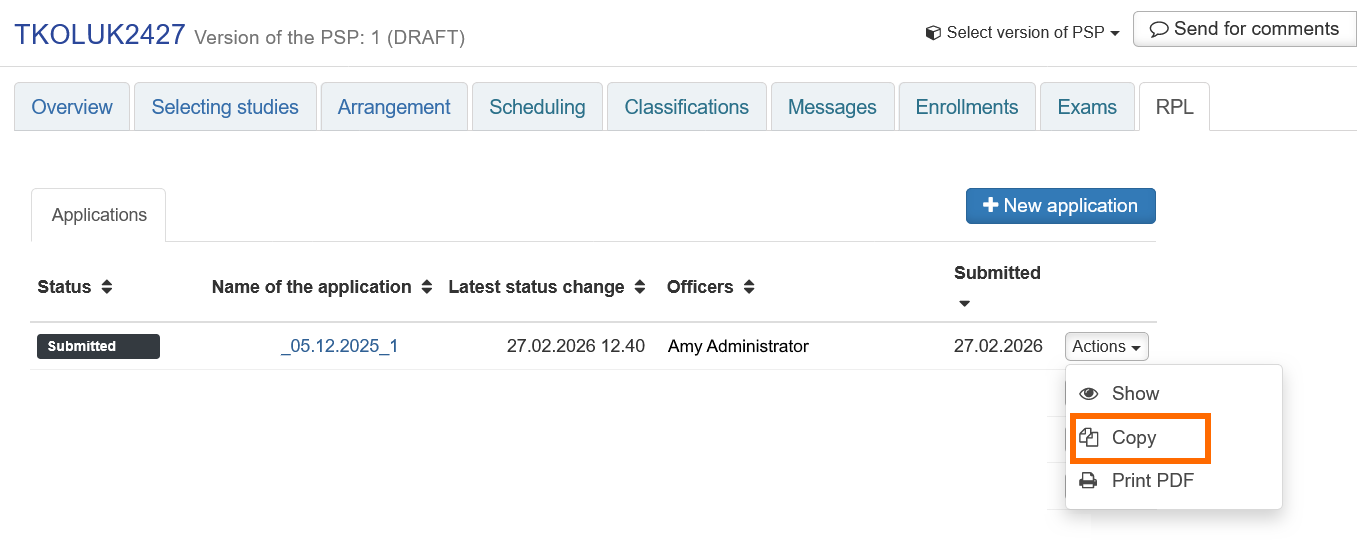
- If you want to use an existing application as a template for a new one, you can copy it by clicking the Actions button for the relevant application (on the right-hand side of the page) and selecting Copy. This will create a copy that includes all the information in the original application, including its attachments. You can then edit the copy to create a new application.
Basic information and guidance discussion
- When you create a new application, the basic details of your study right are automatically filled in, but you need to complete the Guidance discussion section at the bottom of the window.
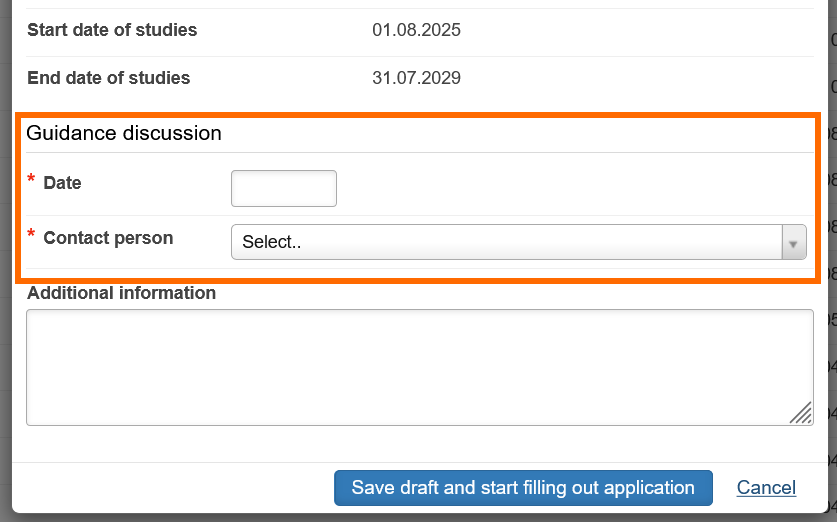
- If you have had a guidance discussion about your RPL application, enter the date of the discussion and the person you had the discussion with. Please note that later you will be asked to select the member of administrative staff who will process your application (see Staff members processing RPL applications by faculty); they may not necessarily be the same person you had the guidance discussion with.
- If you have not had a guidance discussion, enter the current date as the date of the discussion and as the contact person, the relevant person responsible for processing RPL applications in your faculty (see Staff members processing RPL applications by faculty).
- The Additional information field can be left blank.
- Finish by clicking Save draft and start filling out application.
Organisation details and application attachments
- Go to the Organisations section and click +Add organisation.
- In this pop-up window, you need to enter the details of the organisation where you gained your prior learning and add the required attachments.
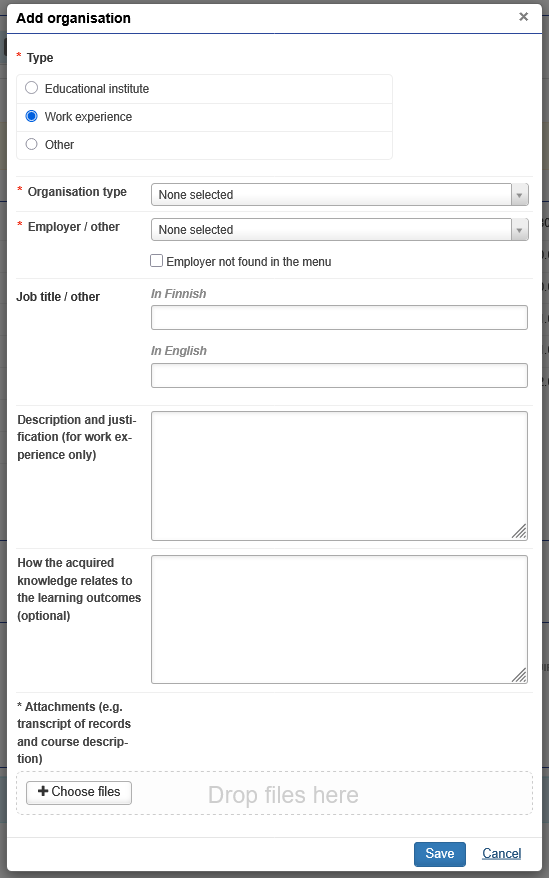
- Under Type, select Work experience or Other (for e.g. roles in associations, positions of trust etc.).
- Under Organisation type, select either Work experience or Other.
- Find the name of your employer (or other organisation) in the Employer / other drop-down menu. If the relevant organisation is not listed, select Employer not found in the menu and enter the name of the organisation in Finnish and in English (if required, you can enter the English name in both fields).
- Fill in the Job title / other field in Finnish and in English (if required, you can enter the English job title in both fields).
- Provide a description of your job role in the Description and justification field.
- You can add further information in the How the acquired knowledge relates to the learning outcomes field. For the learning outcomes of the courses you are seeking to replace, see the course descriptions in the university Study Guide.
- Attach the required attachments by clicking +Choose files or by dragging and dropping the files to the application window. At a minimum, you must attach a signed certificate of employment. For further information, see Before applying for RPL > Application attachments.
- Finish by clicking Save.
- To add another organisation to the same application, click +Add organisation again.
- To edit the details of an organisation or the attachments, click the pen icon next to the organisation name.

Studies or knowledge
Under Studies or knowledge, click the Create application part (knowledge) button. You can apply for multiple credit transfers with the same application by creating the required number of application parts.
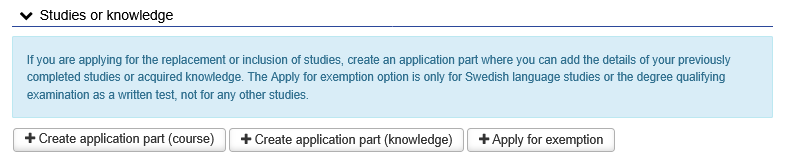
As a rule, you should create a separate application part for each course in your PSP that you wish to replace with your prior learning. Within a given application part, you will define which prior learning (e.g. a specific job role) corresponds to the course in your PSP that you wish to replace.
The structure of an application part depends on the kind of credit transfer you are applying for - see the relevant instructions below:
In this kind of application, your PSP includes a course whose content corresponds to prior learning you acquired in one job role or similar.
(Tip: to see the screenshot below full size, open it in a new browser tab - right-click the image and select the relevant option from the menu.)
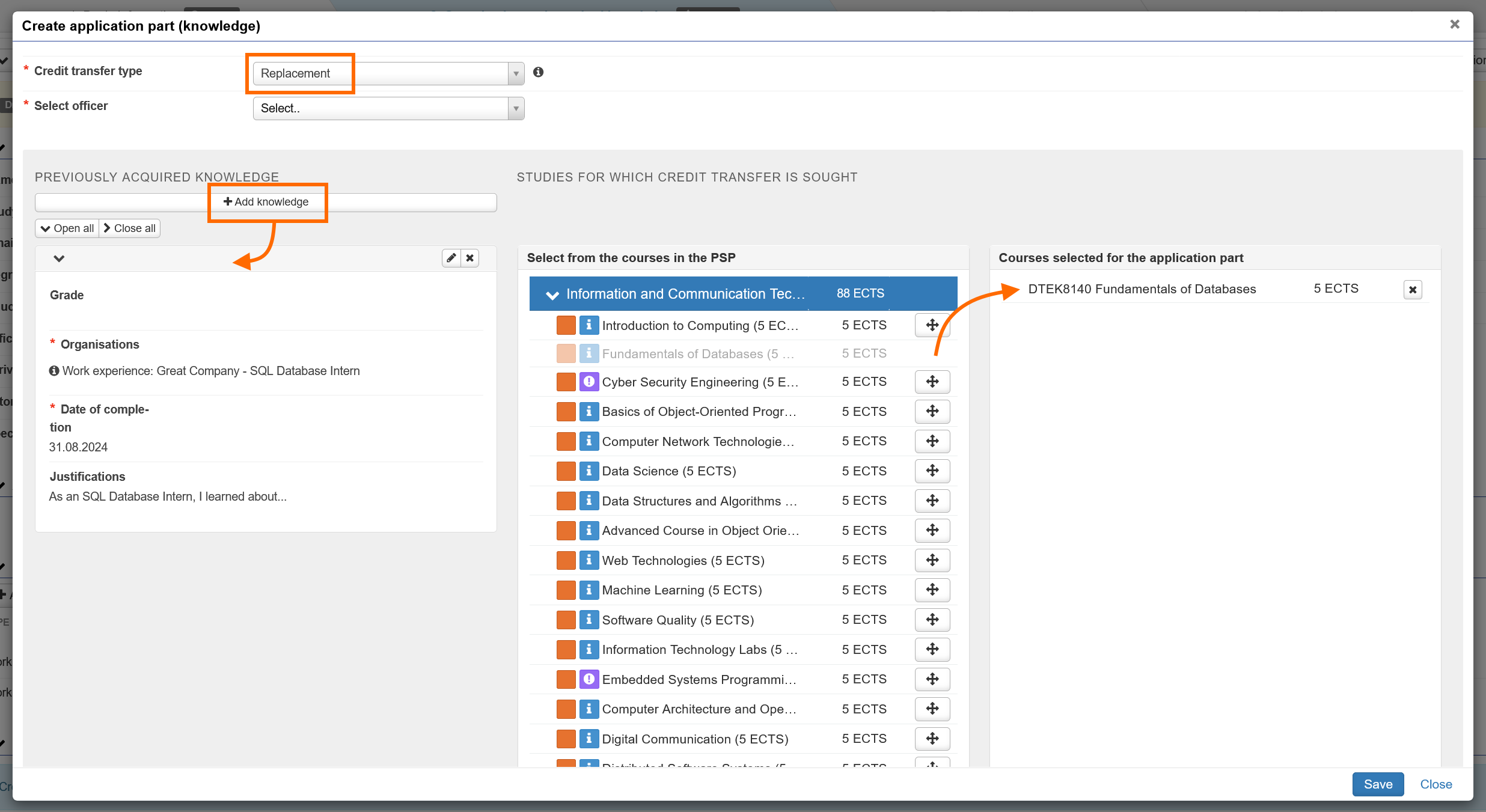
- Click +Create application part (knowledge).
- Credit transfer type: Replacement
- Officer: a member of administrative staff who is responsible for processing RPL applications in your faculty (see Staff members processing RPL applications by faculty). NB! Do not select here the name of your Teacher Tutor/Guidance Counsellor/PSP Counsellor or the teacher responsible for the course you are applying to replace.
- Find the course in your PSP that you would like to replace and drag it to the box on the right.
- Do not add any other courses from your PSP. If you would like replace other courses in your PSP through credit transfer, create a new application part or a whole new application for them.
- Click the +Add knowledge button and add the details of the job role or similar where you acquired the learning you would like to substitute for the course you selected from your PSP.
- Leave the Grade field blank.
- Under Organisation, select the relevant organisation/role whose details you entered previously.
- In the Date of completion field, enter the date when you left the job or role.
- In the Justifications field, you can provide more detailed information about the skills and knowledge you acquired working in the role in question, as required.
- Finish by clicking Add.
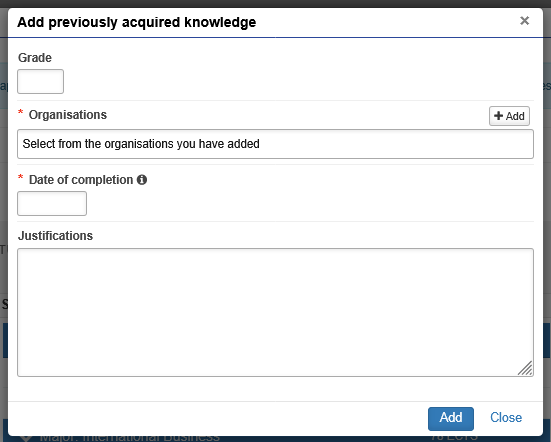
- Save the application part by clicking Save.
In this kind of application, your PSP includes a course whose content corresponds to skills and knowledge you acquired while working in two or more job roles (or similar).
(Tip: to see the screenshot below full size, open it in a new browser tab - right-click the image and select the relevant option from the menu.)
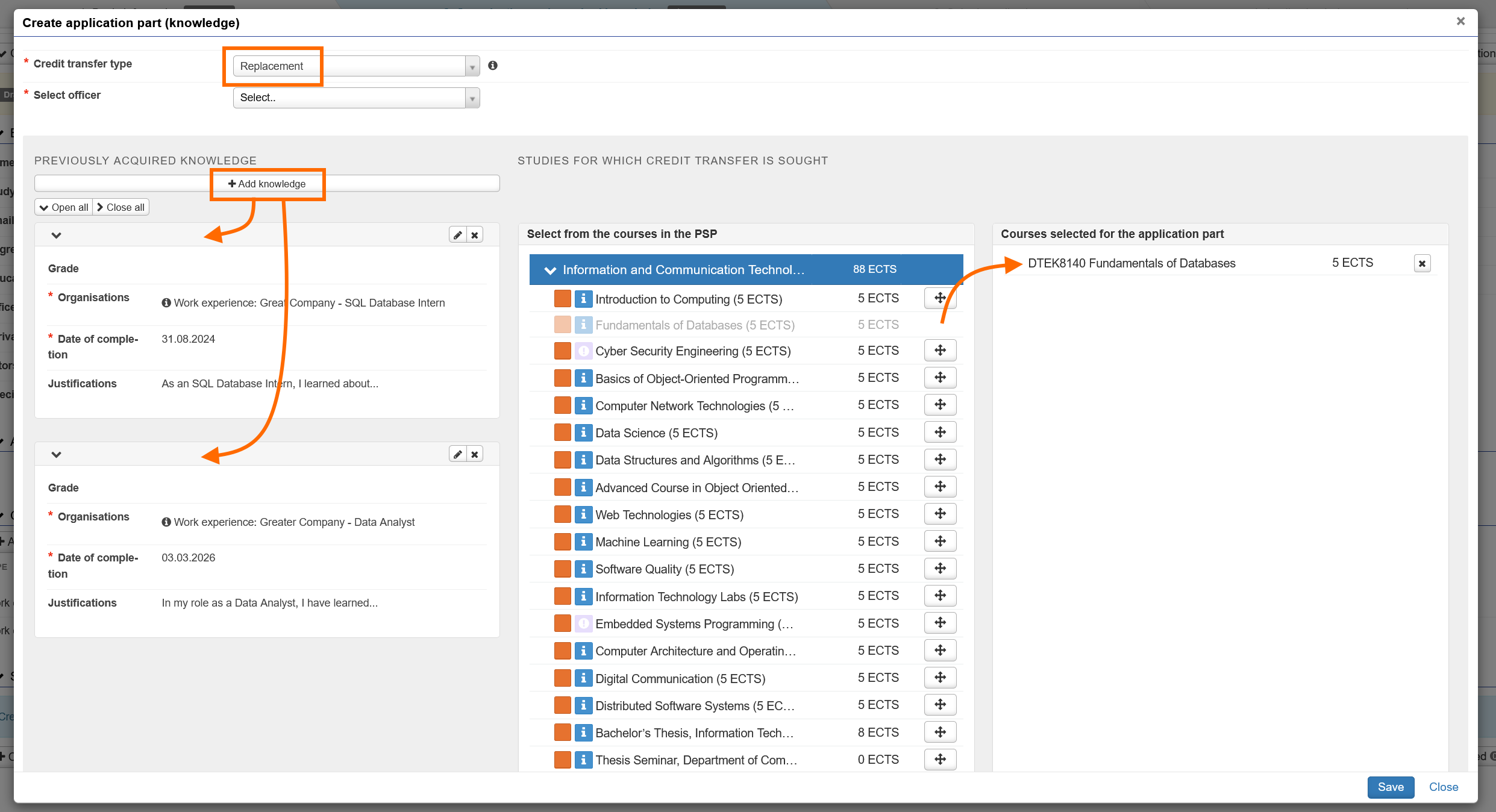
- Click +Create application part (knowledge).
- Credit transfer type: Replacement
- Officer: a member of administrative staff who is responsible for processing RPL applications in your faculty (see Staff members processing RPL applications by faculty). NB! Do not select here the name of your Teacher Tutor/Guidance Counsellor/PSP Counsellor or the teacher responsible for the course you are applying to replace.
- Find the course in your PSP that you would like to replace and drag it to the box on the right.
- Do not add any other courses from your PSP. If you would like replace other courses in your PSP through credit transfer, create a new application part or a whole new application for them.
- Click the +Add knowledge button and add the details of the first job role or similar where you acquired skills and knowledge you would like to substitute for the course you selected from your PSP.
- Leave the Grade field blank.
- Under Organisation, select the relevant organisation/role whose details you entered previously.
- In the Date of completion field, enter the date when you left the job or role.
- In the Justifications field, you can provide more detailed information about the skills and knowledge you acquired working in the role in question, as required.
- Finish by clicking Add.
- Click +Add knowledge again and add the details of the next job or other role. Repeat as needed.
- Save the application part by clicking Save.
In this kind of application, your PSP includes a course whose content and learning outcomes correspond to prior learning you have acquired in part through previous studies and in part through work experience or similar.
(Tip: to see the screenshot below full size, open it in a new browser tab - right-click the image and select the relevant option from the menu.)
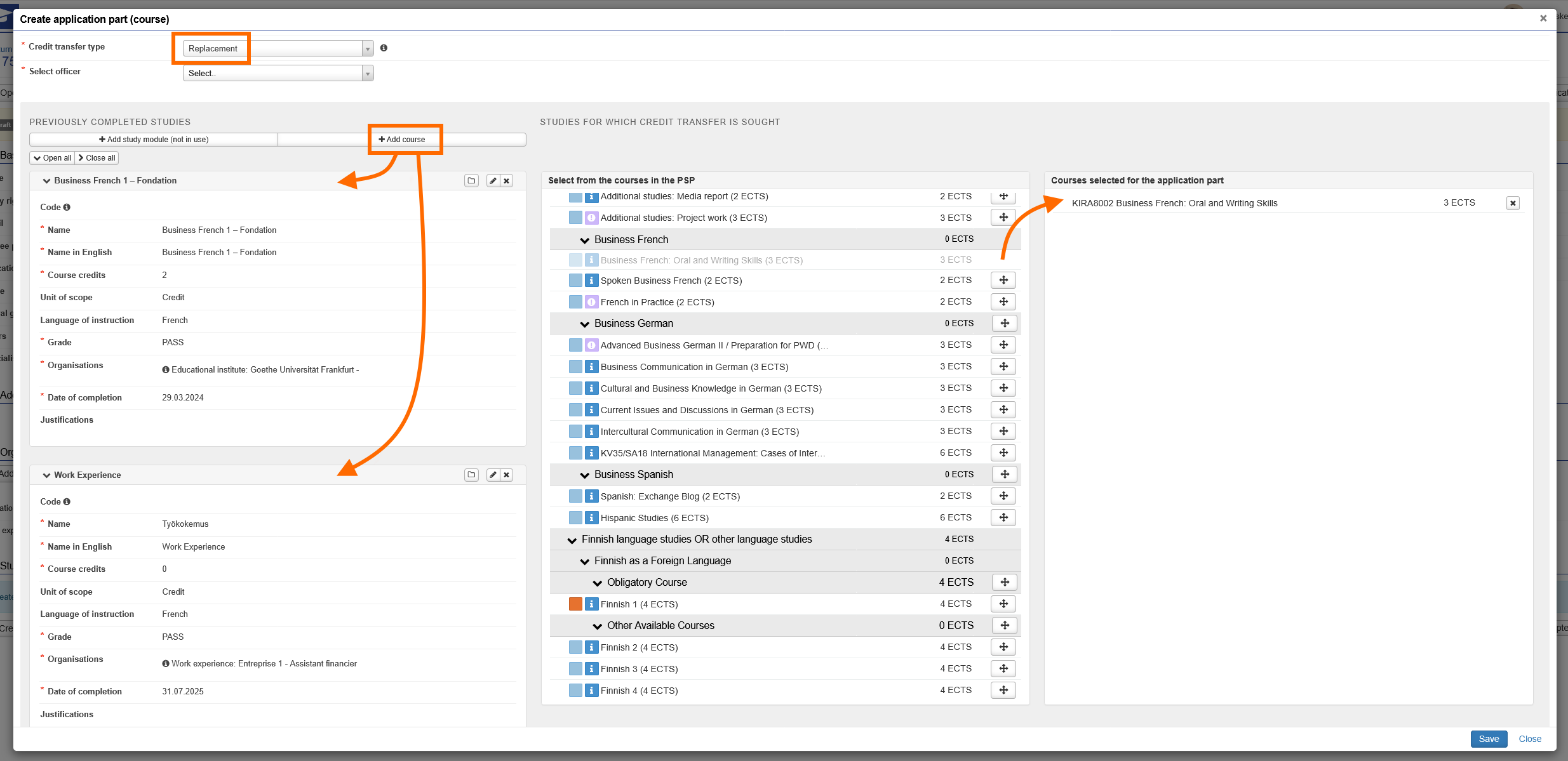
- Ensure that you have added the details of all the organisations where you gained your prior learning under the Organisations section:
- For your previous studies, the details of the place of study and the required attachments (see Submitting an RPL application in Peppi: applications based on previously completed studies)
- For your work experience (or similar), the details of your employer (or equivalent) and the required attachments.
- Go to the Studies or knowledge section and click +Create application part (course).
- Credit transfer type: Replacement
- Officer: a member of administrative staff who is responsible for processing RPL applications in your faculty (see Staff members processing RPL applications by faculty). NB! Do not select here the name of your Teacher Tutor/Guidance Counsellor/PSP Counsellor or the teacher responsible for the course you are applying to replace.
- Find the course in your PSP that you would like to replace and drag it to the box on the right.
- Do not add any other courses from your PSP. If you would like replace other courses in your PSP through credit transfer, create a new application part or a whole new application for them.
- Click the +Add course button and add the details of the relevant previously completed course. See below for more detailed instructions for entering the details of a previously completed course.
- If you would like other courses you have completed previously to be taken into consideration in replacing the course you selected from your PSP, you can add them to this application part by clicking +Add course again.
- To add the details of your work experience or similar, click +Add course again. NB! For technical reasons, the details of learning acquired outside formal education are in this case entered as if they were studies.
- In the Name field, enter Työkokemus / Work Experience.
- In the Credits field, enter 0.
- In the Grade field, enter PASS.
- Under Organisations, select the relevant employer/role whose details you entered previously.
- For the Date of completion, enter the date when you left the role.
- In the Justifications field, you can write more detailed information about the skills and knowledge you gained in this role or about how your work experience complements the learning you acquired through the studies included in this same application part.
- Finish by clicking Save.
Entering the details of a previously completed course
- Under Previously completed studies, select +Add course. The +Add study module option is not in use.
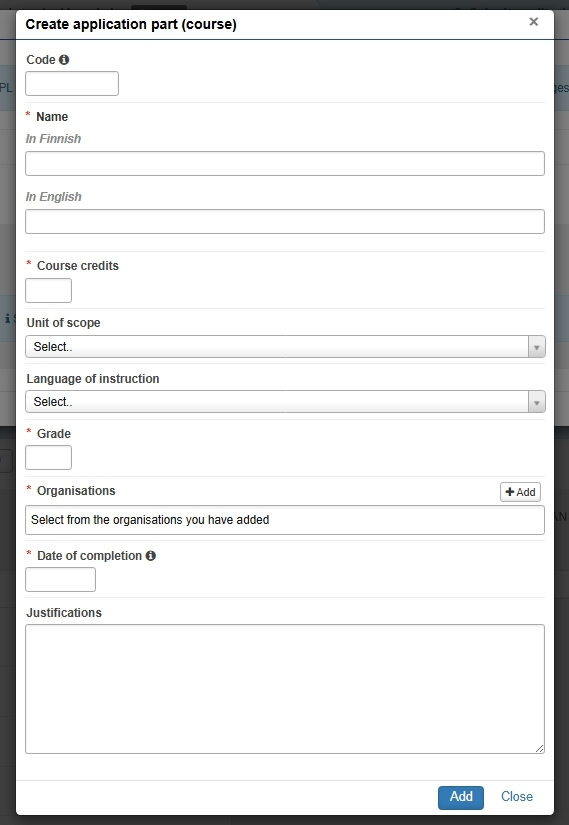
- If you know the course code, enter it in the Code field. Alternatively, leave the field blank. No not write e.g. '-' or 'N/A' in this field.
- Enter the name of the course in English and in Finnish exactly the way it is written in your transcript of records.
- Do not translate the course name into English or Finnish yourself - instead, copy the name from your transcript or from other official sources. If the original course name is in English, enter the English name in the In Finnish field as well. If the original course name is in a language other than English or Finnish, enter it in the original language in both the In Finnish and In English fields.
- Enter the number of course credits and select the Unit of Scope (usually Credit, which refers to ECTS credits. If the original course credits are in a unit other than ECTS credits or hours, leave this field blank).
- Select the language of instruction from the drop-down menu.
- Type the grade you received in the Grade field.
- Under Organisations, select the relevant place of study whose details you entered previously.
- Enter the original date of completion of the course as provided in your transcript of records.
- The Justification field can be left blank; the course description attached to your application will be used to confirm the course content and learning outcomes. Any other further information can be added in this field, as required.
- Finish by clicking Add.
In this kind of application, you have multiple courses in your PSP whose contents and learning outcomes correspond to skills and knowledge you acquired through one or more job role or similar.
- You need to create a separate application part for each course in your PSP that you would like to replace. Alternatively, you can also create a whole new application for each course you want to replace.
- You can add the same job role or similar to different application parts.
- In each application part, write more detailed information in the Justifications field about your skills and knowledge and how they correspond to the learning outcomes of the course you have selected from your PSP for that application part.
For more detailed instructions, see the relevant section above (e.g. If you are applying to replace one course in your PSP with one job role or similar).
Submitting the application
- When you are ready to submit your application, scroll up to the top of the page, where you will find the Submit application button.
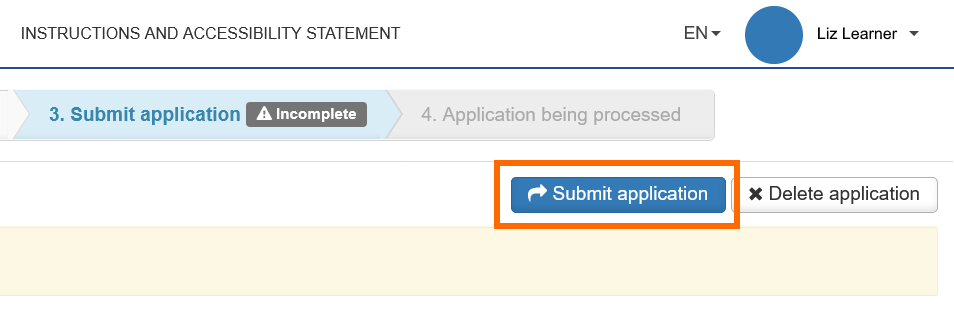
- The system will ask you to confirm that you want to submit the application.
- Submitted applications can be found on the RPL tab of your PSP. You can view the status of your application there.
- You will receive email notifications of any changes to the status of your application (e.g. if the application has been returned to you for amendments or when a decision has been made on your application).
- The decisions are made by the faculties or the Centre for Language and Communication Studies. As a rule, decisions on the recognition of prior learning are made within a month from the submission of the application and the appropriate attachments. Decisions on applications submitted in June or July are normally made by the end of August.
- If you are dissatisfied with a decision, you can appeal it and request rectification following the appeals process described in the message you received about the decision. For more information about the appeals process, see the university intranet page Appeals against a Grade.